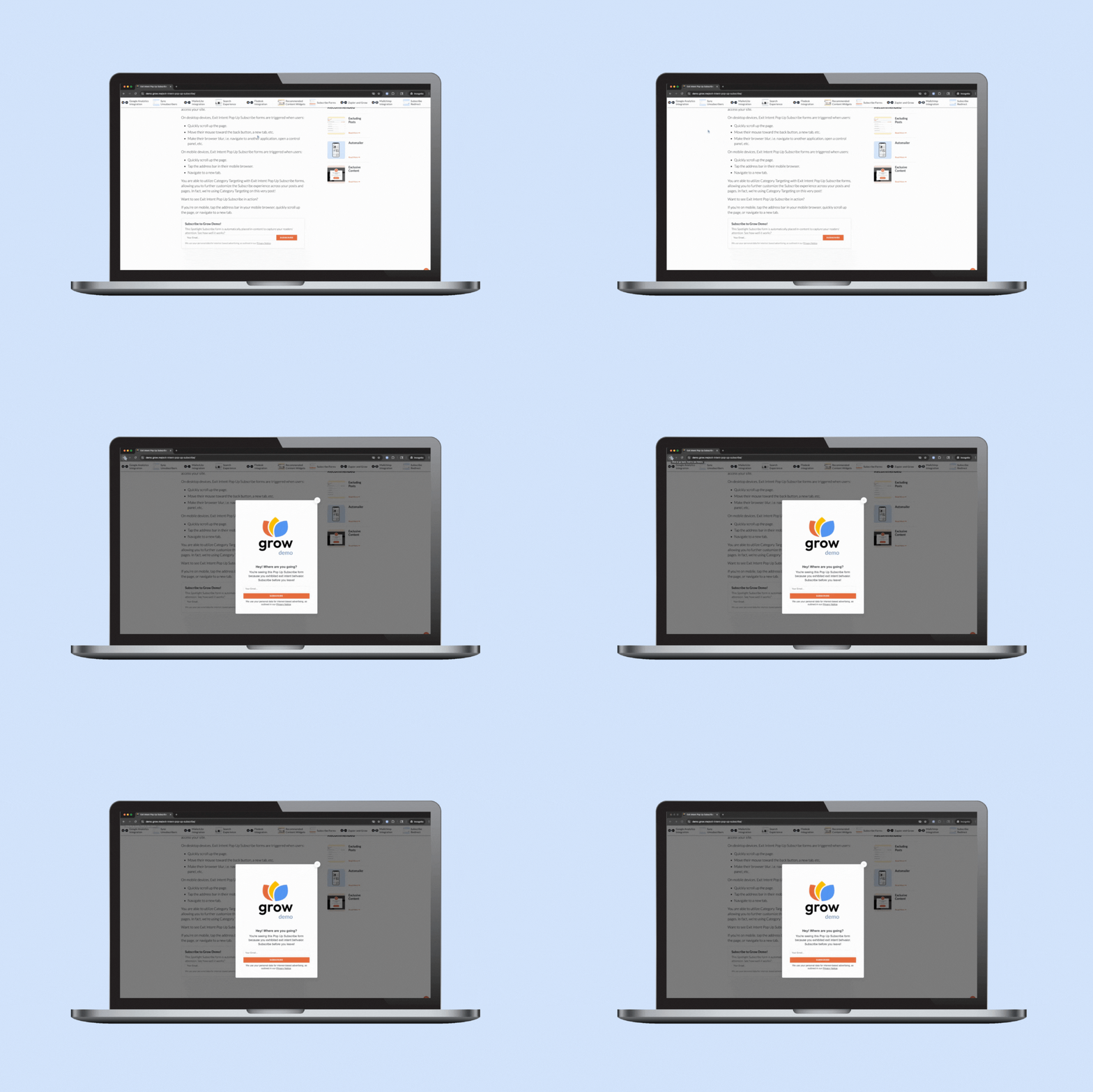
Exit Intent Pop Up Subscribe allows you to adjust your Pop Up Subscribe’s trigger so that it is triggered by reader behavior that indicates they are leaving your site.
Exit intent behaviors vary by device, so the triggers will differ based on how users access your site.
On desktop devices, Exit Intent Pop Up Subscribe forms are triggered when users:
Move their mouse toward the back button, a new tab, etc.
Make their browser blur, i.e. navigate to another application, open a control panel, etc.
On mobile devices, Exit Intent Pop Up Subscribe forms are triggered when users:
Quickly scroll up the page.
Tap the address bar in their mobile browser.
Navigate to a new tab.
You are able to utilize Category Targeting with Exit Intent Pop Up Subscribe forms, allowing you to further customize the Subscribe experience across your posts and pages. In fact, we’re using Category Targeting on this very post!
Want to see Exit Intent Pop Up Subscribe in action?
If you’re on mobile, tap the address bar in your mobile browser, quickly scroll up the page, or navigate to a new tab.
If you’re on desktop, move the mouse toward the back button or new tab, quickly scroll up the page, or pull up another application while leaving this browser window open in the background.
Ready to set up with Exit Intent Pop Up Subscribe?
Subscribe Redirect allows you to redirect your subscribers to another page on your site, a page on an external site, or directly to file as soon as they enter their email address It’s a great way to incentivize readers to join your mailing list and immediately deliver a freebie, thank you message, affiliate link, and more!
Subscribe Redirect works with four of Grow’s Subscribe form types:
Subscribe Redirect will open all links in a new tab so it’s easy for the reader to navigate back to your content.
How to Set Up Subscribe Redirect
Adding Subscribe Redirect to your Subscribe forms is easy!
In Grow Publisher Portal, navigate to Subscribe > Forms and click Manage Form on an existing form to which you want to add a redirect link. You can also click Add New Form to create a brand new Subscribe form; once you’ve created your form in the Subscribe Wizard, click “Show me my new form.”
When you’re on your form’s settings, scroll down to the Form Actions section and click Add Action, then click Add Redirect Link. You’ll be able to add your URL there!
Category Targeting is a WordPress-exclusive feature that allows you to target your Spotlight and Pop Up Subscribe forms to appear on posts in specific categories. That means if you have an email newsletter sequence or a lead magnet for a specific type of content, you can create a special Subscribe form to target subscribers with that niche interest.
This is a great way to capture seasonal or holiday audiences and add them to your email list to encourage year-round return visits!
Since Category Targeting depends on your WordPress category metadata, it’s only available for sites on WordPress. To pull in your WordPress category metadata, you’ll need to install the Grow for WordPress plugin. After installing and activating the Grow for WordPress plugin, connect your Grow account.
When you’ve got your Subscribe form set up for Category Targeting, it will replace your default Spotlight or Pop Up Subscribe form on any posts in that category.
If a post falls into multiple categories that have a Category Targeting-assigned Subscribe form, Grow will choose which Subscribe form to display at random. There is currently no hierarchy or way to set a preferred form.
Not seeing the Subscribe form? You may already be subscribed. Open this post in an incognito window and try again!
Some of Grow’s most successful and popular features are its Subscribe forms, conversion tools designed to capture your readers’ attention – and their email addresses!
Grow’s Subscribe forms offer flexibility in how you build your email list without requiring extensive coding knowledge. Grow currently features 5 types of Subscribe forms:
Each form is designed to make it easy for your readers to subscribe to your content while consenting to interest-based advertising, which is important as the Internet moves toward its cookie-less future.
Let’s see Grow’s Subscribe forms in action!
Spotlight Subscribe
Spotlight Subscribe forms are in-content Subscribe forms automatically placed about 15% of the way into a post’s content.
The Spotlight Effect dims the screen around Spotlight Subscribe forms to call attention to them the same way a pop up might, without cluttering the user’s screen.
The Inview Effect can also be enabled for Spotlight Subscribe forms. This box allows the Spotlight Subscribe form to stick to the top of the page and scroll with the reader, increasing the length of time it’s on screen and its viewability!
Grow’s Pop Up Subscribe forms will populate when a reader scrolls around 25% of the way into content or when readers display exit intent behaviors, depending on your Display Experience settings. They will only appear once per session.
Since you may have already experienced our Pop Up Subscribe form, here’s a gif showing the mobile experience:
Pop Up Subscribe forms are also Google-friendly! They are reverse-targeted for Google traffic, meaning when readers arrive on your site from Google Search results, they will be served a Spotlight Subscribe form instead of a Pop Up Subscribe form to ensure you are not penalized by Google for use of pop ups.
Manual Placement Subscribe forms look like Spotlight Subscribe forms and can even use the Spotlight Effect, but they are manually placed with an HTML code, either in your HTML editor or a Custom HTML block.
Manual Placement forms must be placed below the first screen view or they may not load as intended. This is because Grow’s scripts are deferred from the first screen view to ensure your site loads as quickly as possible!
Click to Subscribe forms let you customize the look and feel of a header menu or sidebar (or anywhere else) and embrace your inner minimalist without sacrificing a conversion opportunity.
Grow’s newest Subscribe form, Link Share forms take the hassle out of sending post links to your subscribers. With a Link Share form, a reader just needs to enter their email address and click the submit button. Then Grow will send an email straight to the reader with a link to the article they were browsing!
Link Share forms are great for posts readers are likely to use for reference, like recipes, travel guides, lesson plans, and more.
Link Share forms can be set as the default Spotlight Subscribe form – meaning they’ll be placed 15% of the way into post content – or put in a custom location with the Most Valuable Content Form setting in Grow Publisher Portal. This can easily add your Link Share form to elements with unique content selectors, like the Create recipe card below!
How to Add a Link Share Form
No Ratings
Setting up a Link Share form is easy! You'll create the form in Grow Publisher Portal, then decide where to set it and forget it.
Instructions
First, head to Grow Publisher Portal and click Subscribe in the siderail. Then click Add New Form.
Choose a Link Share form as your Form Type and fill in the fields in the Subscribe Wizard.
Now that your Link Share form has been created, decide where to place it:
If you want it to appear in-content in all your posts, set it as your Default Spotlight Subscribe form under Subscribe Settings.
If you want it to appear in a specific place in addition to your default Spotlight Subscribe form, scroll down on the Subscribe Settings page and enable the Most Valuable Content Form. Then choose your Link Share form from the dropdown. Depending on where you are placing the form, you may need to define a Most Valuable Content selector.
Notes
Link Share forms can automatically target Create, Tasty, and WordPress Recipe Maker recipe and how-to cards!
Want to automatically add your Link Share subscribers to your newsletter list?
Enable Automailer List on your Link Share form settings to add subscribers to Automailer.
Add Form Actions on your Link Share form settings to send subscribers to your Email Service Provider.